
Popups and side panels (off-canvas layouts) allow you to display important information and conversion-focused messages without interrupting the user experience. Follow the steps below to create and customize these elements using Elementor.
Step 1: Add a trigger button
First, add a button that will trigger the popup or side panel.
- Edit any page with Elementor.
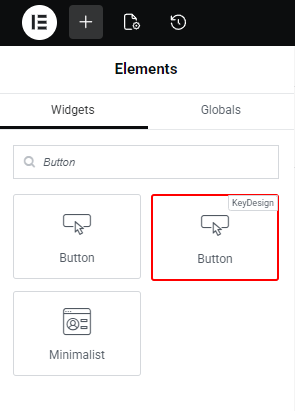
- In the left side panel, search for the Button widget.

- Drag and drop the widget onto your page.
- Customize the button text and style as needed.
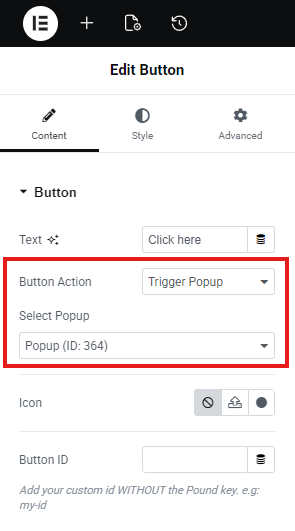
- Click on the Button widget you added to the page.
- In the left Elementor panel, locate the Button Action setting and select Trigger Popup from the dropdown.
- From the popup selector below, choose the popup or off-canvas template you previously created.
- Update the page to save your changes.
Step 2: Create a popup or side panel
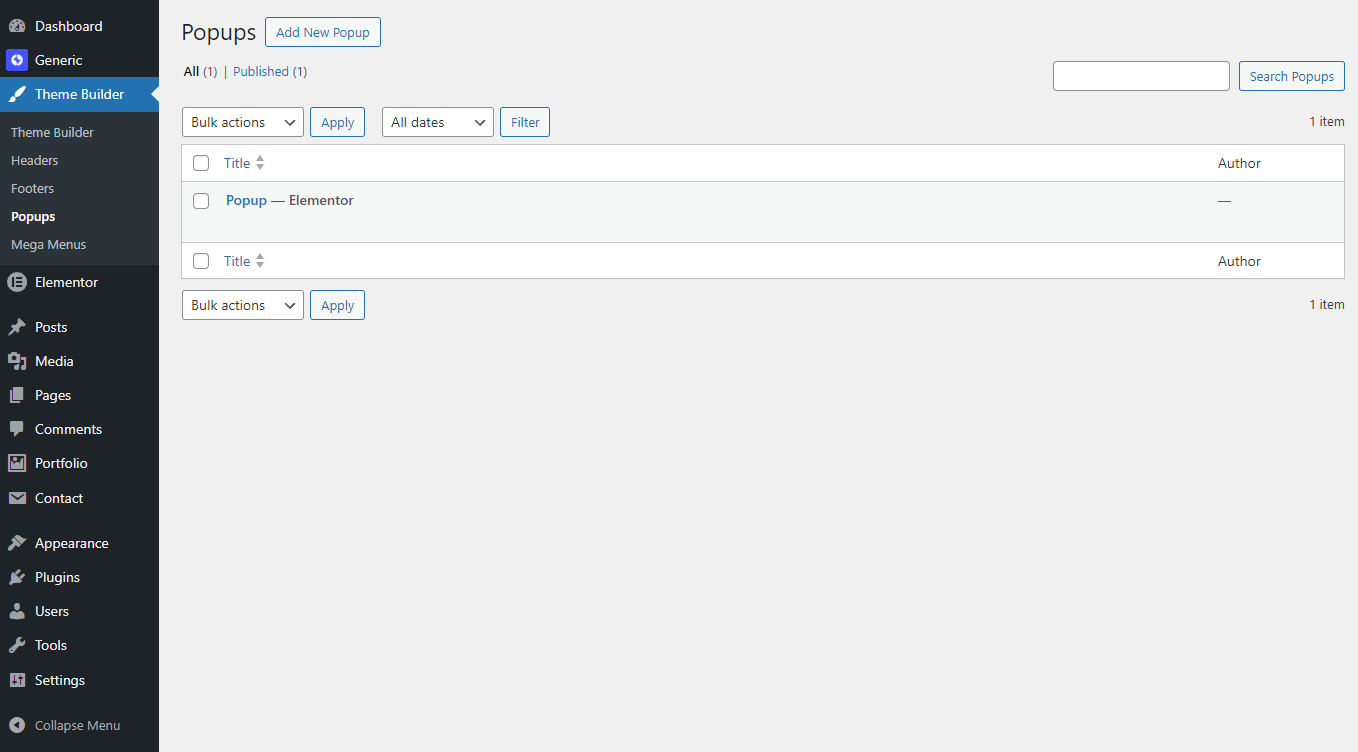
- Go to your site admin area → Theme Builder → Popups.
- Click Add New Popup.
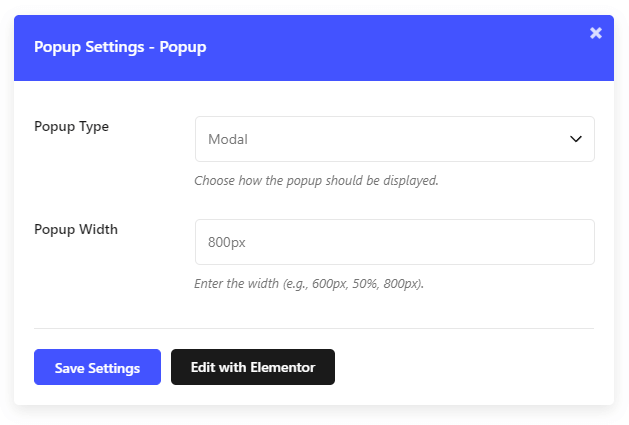
- In the modal window select the popup type (Modal or Off-Canvas) and configure the available popup settings.
- Click Edit with Elementor.
- Build your popup layout using containers and widgets.
- Click Update to save the popup template.
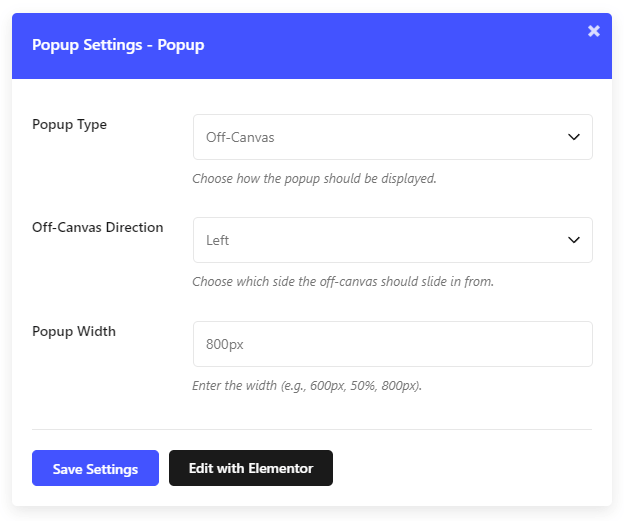
Once saved, the popup can be assigned as a trigger to buttons or other interactive elements.
Popups and side panels are ideal for announcements, contact forms, newsletters, and call-to-action sections. By combining clean layouts with clear triggers, you can enhance user interaction without disrupting navigation.
Was this article helpful?
What went wrong?
